
How it works
Gather the originals
Pick the photos and videos of one trip from your camera roll, up to 120. The originals keep their date and location.
Upload them to Troven
Troven reads each file's time and place and builds your stops, in order, on a map.
Fix the route
Place any photo that landed nowhere, drag a stop, set how you travelled each leg.
Create the video
Tap Create my video: the trip is saved and the editor opens. Choose map style, pace, photos per stop and music, then tap Generate video and download it.
Why the originals matter
Your phone saves the time and the place inside each photo. Troven builds the route from exactly that, so the closer your files are to the originals, the better the result. Screenshots, downloads from social media and photos forwarded in chats usually lose that information.
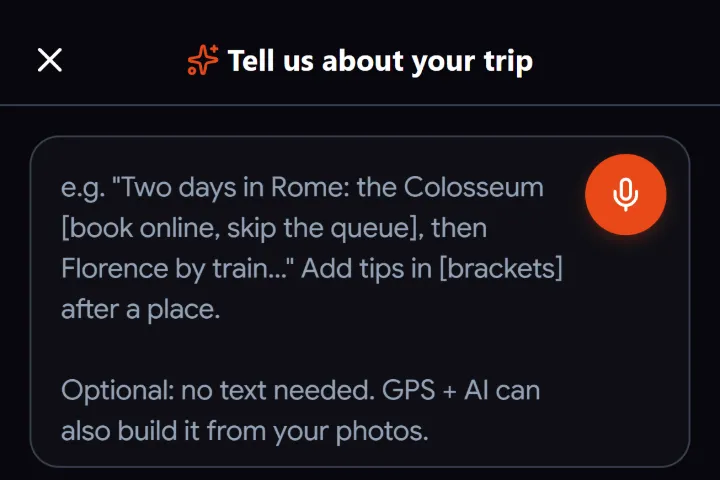
On Android, browsers remove the location from photos when you pick them. Videos keep theirs. If you can, copy the originals to a computer and upload them there: desktop browsers keep the location. If most of your photos still land without a place, describe the trip by text or voice note instead, or place the stops yourself.
Get the route right first
The video follows the route on your trip, so it is worth a minute to check it:
- A stop in the wrong spot: remove it and add the right place by search or on the map.
- Stops out of order: drag them. If whole days look shuffled, your camera’s clock was probably off; change the date of that day.
- A place you did not photograph: add it as a stop so the route passes through it.
- The line takes an odd road: drag the route points, or set the leg to train, boat or plane.
Choosing the style
- Pace: Reel keeps a 20-stop trip to around half a minute. Cinematic lingers.
- Map: ten styles, from dark and white to satellite and pencil.
- Photos: up to five per stop, the ones you pick. Fewer photos make a faster video.
- Music: a beat-synced track from Troven’s catalogue, or your own song for a version you download.
Sharing it
Download the MP4 at 480p, 720p or 1080p, or use Share on your phone to pass it to Instagram, TikTok or a chat through the share sheet. You can also show the video on your trip page. Your trips stay in your account to come back to anytime, and you can make one public whenever you want to share it.
Questions, answered
Why are some photos missing from the map?
Can I use photos someone sent me on WhatsApp?
How long does the video take?
What size is the video?
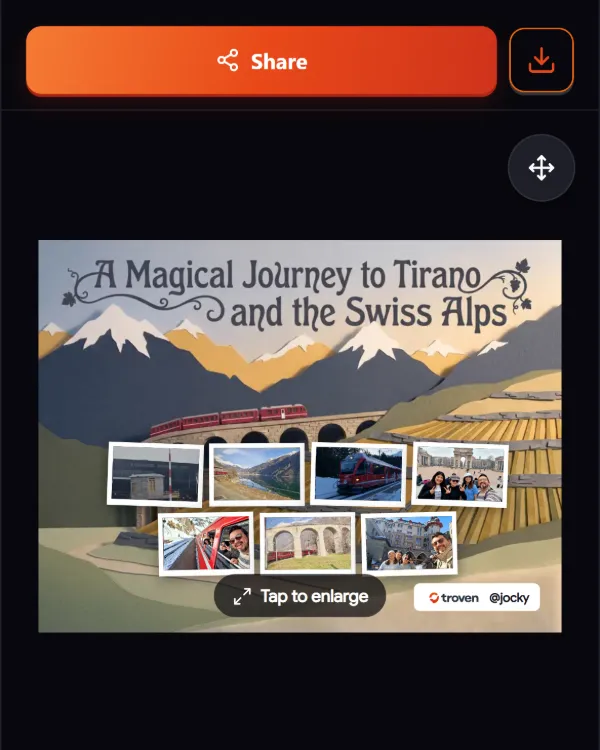
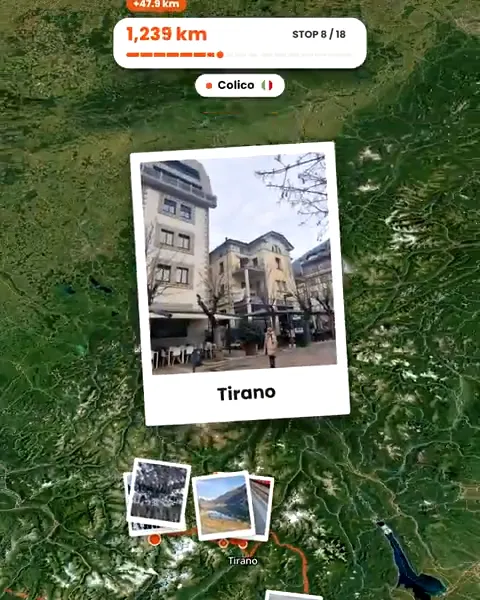
Your photos already hold the trip.
Upload them and see your route, map and itinerary come together. Free on the web.
Keep reading
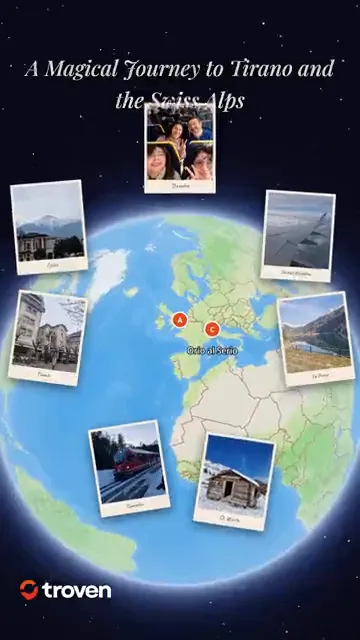 ProductCreate an animated travel route video from your photosTroven turns your trip photos into an animated route video, a map flythrough with your photos and music, ready for Reels, TikTok and Stories. Free.
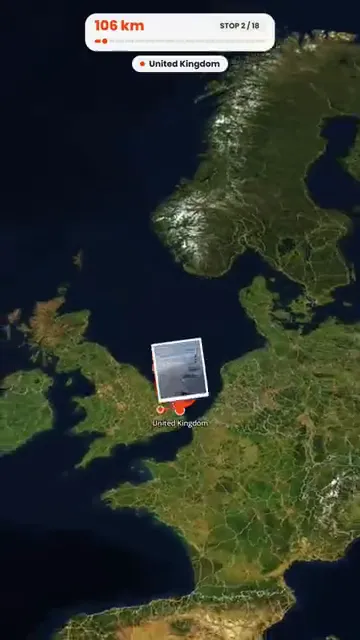 GuideHow to turn holiday photos into a travel ReelMake a travel Reel for Instagram, TikTok or Shorts from your holiday photos, without an editing app. Pick the photos, the pace and the music, then post.
 GuideWhat to do when travel photos have no GPS dataWhy some travel photos have no location, how to check, and four ways to still get them on your trip map, from time matching to AI place recognition.