
How it works
Start a past trip
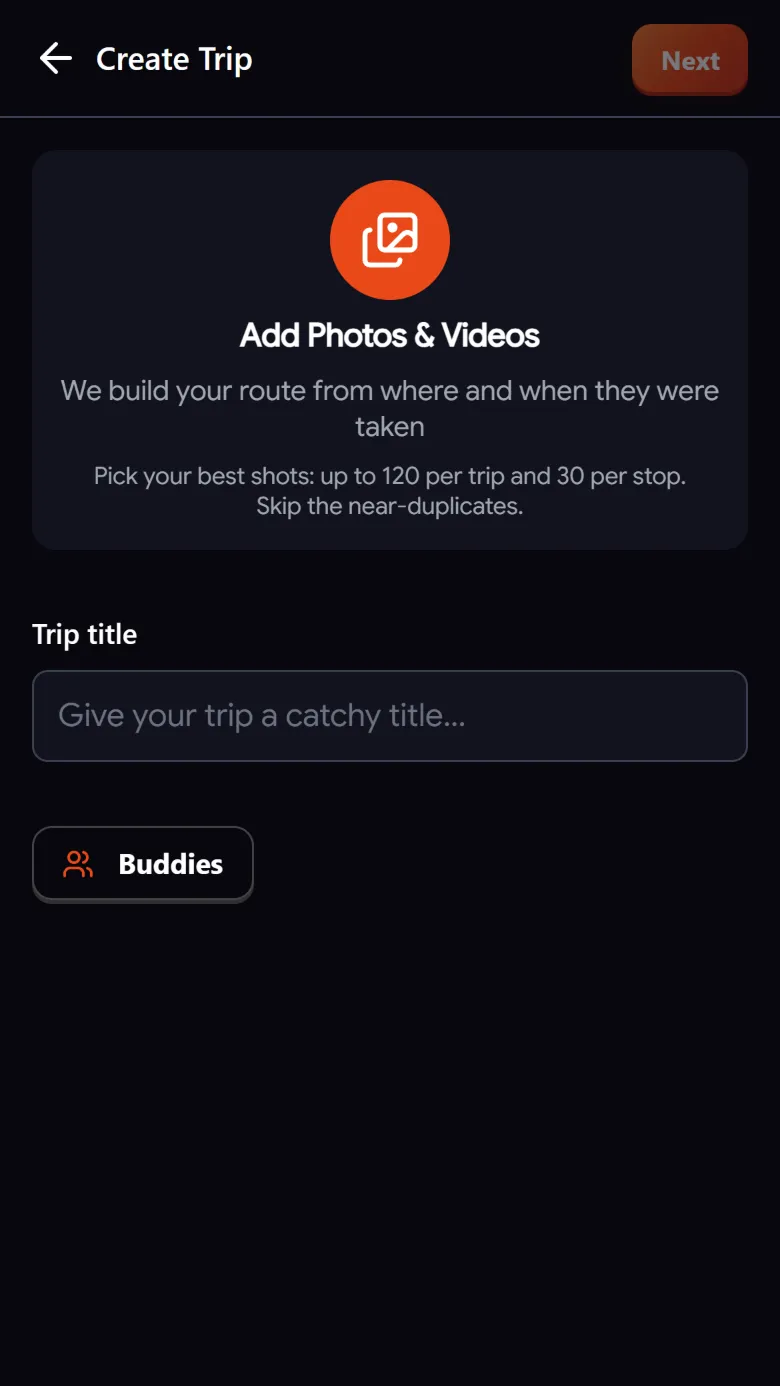
Create a trip and add its photos and videos, up to 120 and up to 30 per stop.
Let it sort itself
Troven orders everything by time, groups nearby photos into stops and names each place.
Add your tips
Type or say what you recommend. Tips land on the stop they belong to.
Check and save
Fix the order or the days, accept the suggested title or write your own. The trip is saved, and you can make it public when you like.
What an itinerary from photos looks like
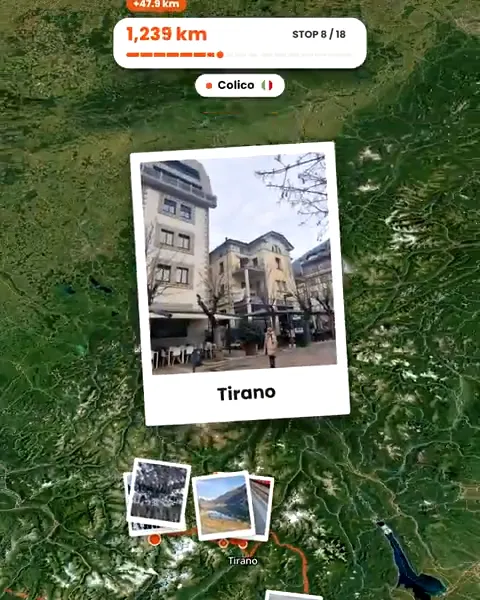
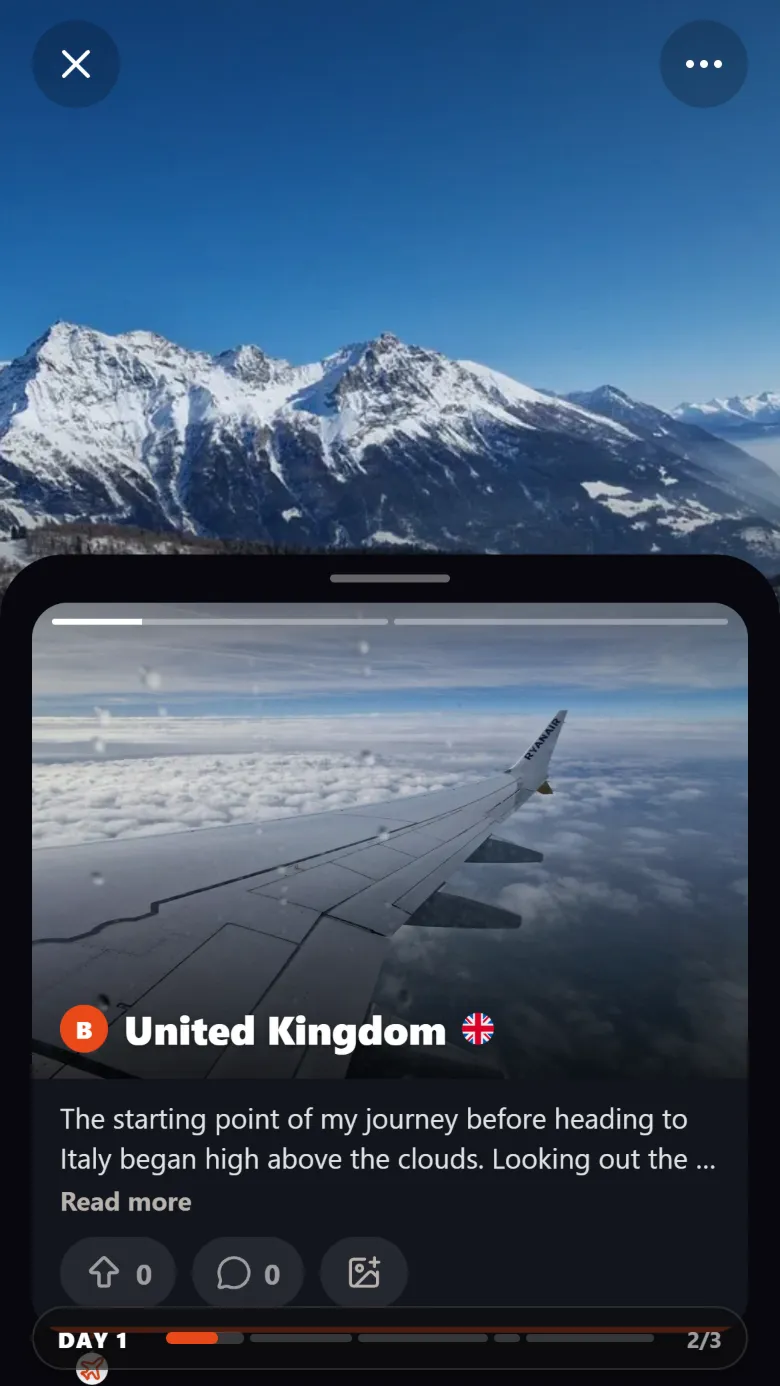
Each day lists its stops in order. Each stop has a name (the landmark or place nearby), its photos, a short description if you want one and your tips. The whole trip sits on a map with the route between the stops, and the trip gets a title and a story at the top.
How Troven builds it
In short: photos are sorted by time, photos taken close together become a stop named after the place, and stops are grouped into days by your camera’s date. The details, including everything you can edit, are on the itinerary page.
Adding the human part
Photos show where you were; they do not say what was worth it. Describe the trip by typing or recording voice notes (up to a minute each), and Troven’s AI writes stop descriptions, moves your recommendations onto the right stops as tips, and adds places you mention that are not in your photos. The Improve button can polish the story you write for the top of the page.
Before you share
- Skim the days: Troven does not adjust for time zones, so a camera left on home time, or with a wrong clock, can shift photos to the wrong day.
- Check places the AI suggested for photos without GPS.
- Remember a public trip shows where each photo was taken.
Questions, answered
Does the AI invent places?
How do I add tips to a stop?
Can I plan a future trip this way?
How many photos can one trip have?

Your photos already hold the trip.
Upload them and see your route, map and itinerary come together. Free on the web.
Keep reading
 ProductAutomatically rebuild your trip itinerary from your photosTroven rebuilds your trip itinerary from your photos, day by day and stop by stop, with place names, your tips and a story. Edit anything, then share it.
 GuideHow to reconstruct an old trip from photo GPS and timestampsRebuild a trip from years ago using the GPS and timestamps saved in your photos, plus what to do when the dates are wrong or the location is missing.
 GuideHow to organize hundreds of travel photos and share themCame home with hundreds of photos? Pick the best 120, let Troven turn them into a map, an itinerary and a route video, and share one link instead of an album.